Importing Data
Available to: Developers, Admins (UI import); All users with API access (SDK import) Minimum plan: Free
TitanRDM supports importing data from files into your deployed tables. You can upload files through the UI or programmatically via the API/SDK. The import process handles column matching, data validation, and merging into the target table.
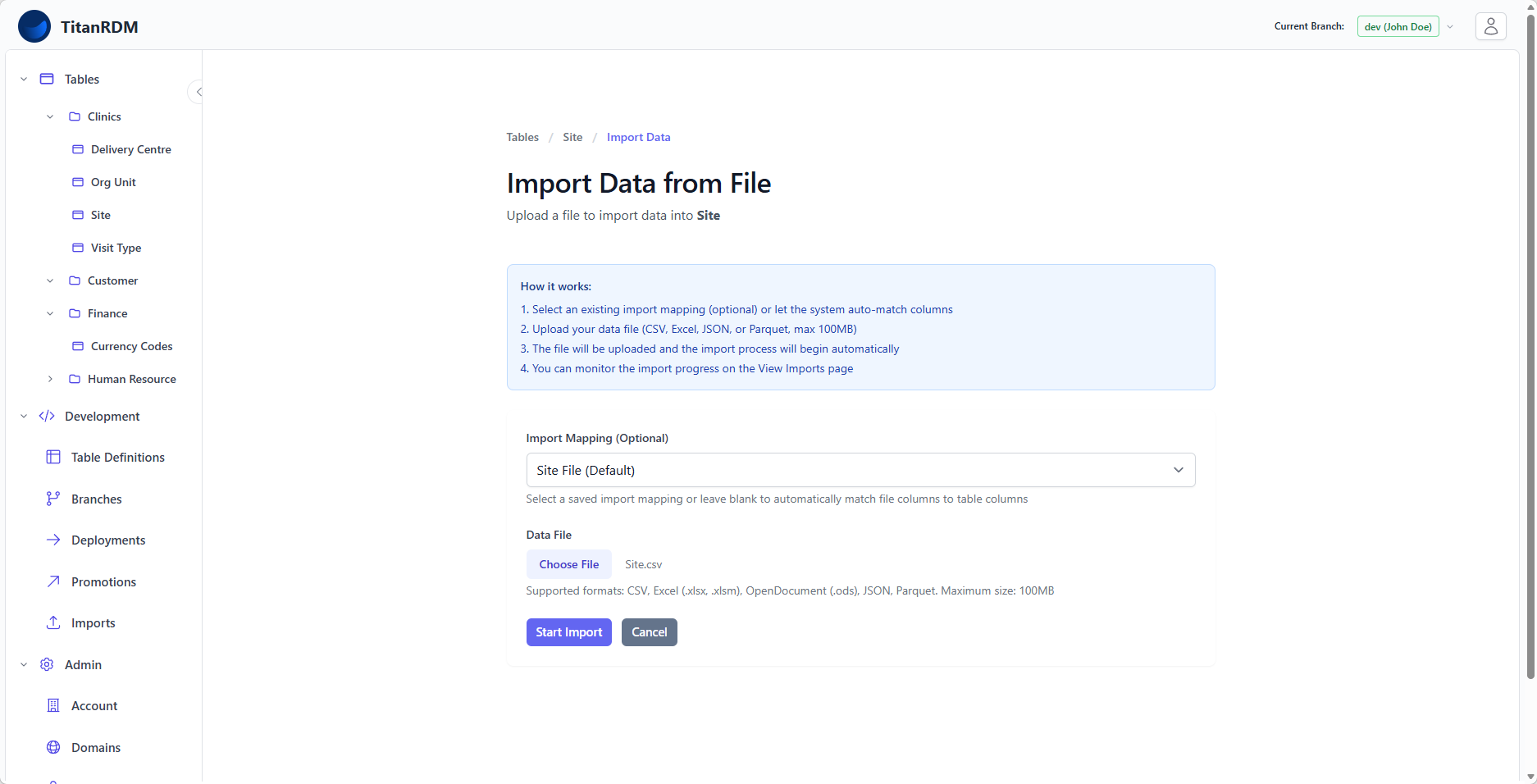
Supported File Formats
| Format | Extensions | Notes |
|---|---|---|
| CSV | .csv | Comma-separated values. The most common format. |
| Excel | .xlsx, .xlsm | Microsoft Excel workbooks. Reads the first sheet by default. |
| OpenDocument | .ods | LibreOffice/OpenOffice spreadsheets. |
| JSON | .json | JSON array of objects, where each object represents a row. |
| Parquet | .parquet | Apache Parquet columnar format. Efficient for large data sets. |
Maximum file size: 100 MB.
Import Workflow (UI)
Step 1: Navigate to the Import Page
From the data grid for your table:
- Click the Import Data button in the header bar
Step 2: Select an Import Mapping (Optional)
If import mappings have been defined for this table, you can select one from the dropdown. Import mappings define how file columns map to table columns, making repeated imports consistent.
- Auto-match (default) — TitanRDM automatically matches file column names to table column names. Exact matches are mapped; unmatched columns are ignored.
- Named mapping — A saved mapping that explicitly defines which file columns map to which table columns. If a default mapping exists, it is pre-selected.

Tip: If you import the same file structure regularly, create an import mapping to avoid manual column matching each time. See Import Mappings.
If no import mappings exist for the table, a note is shown with a link to create one.
Step 3: Upload Your File
- Click the file input or drag a file onto it
- Select your data file (CSV, Excel, JSON, or Parquet)
Step 4: Start the Import
- Click Start Import
- A progress bar shows the upload progress
- Once the file is uploaded, the import job begins processing in the background
- A success message appears with a link to the Import History page

Step 5: Monitor the Import
The import runs as a background job. To check its status:
- Click the Import History link in the success message, or
- Navigate to the table's Import History (from the table header breadcrumb), or
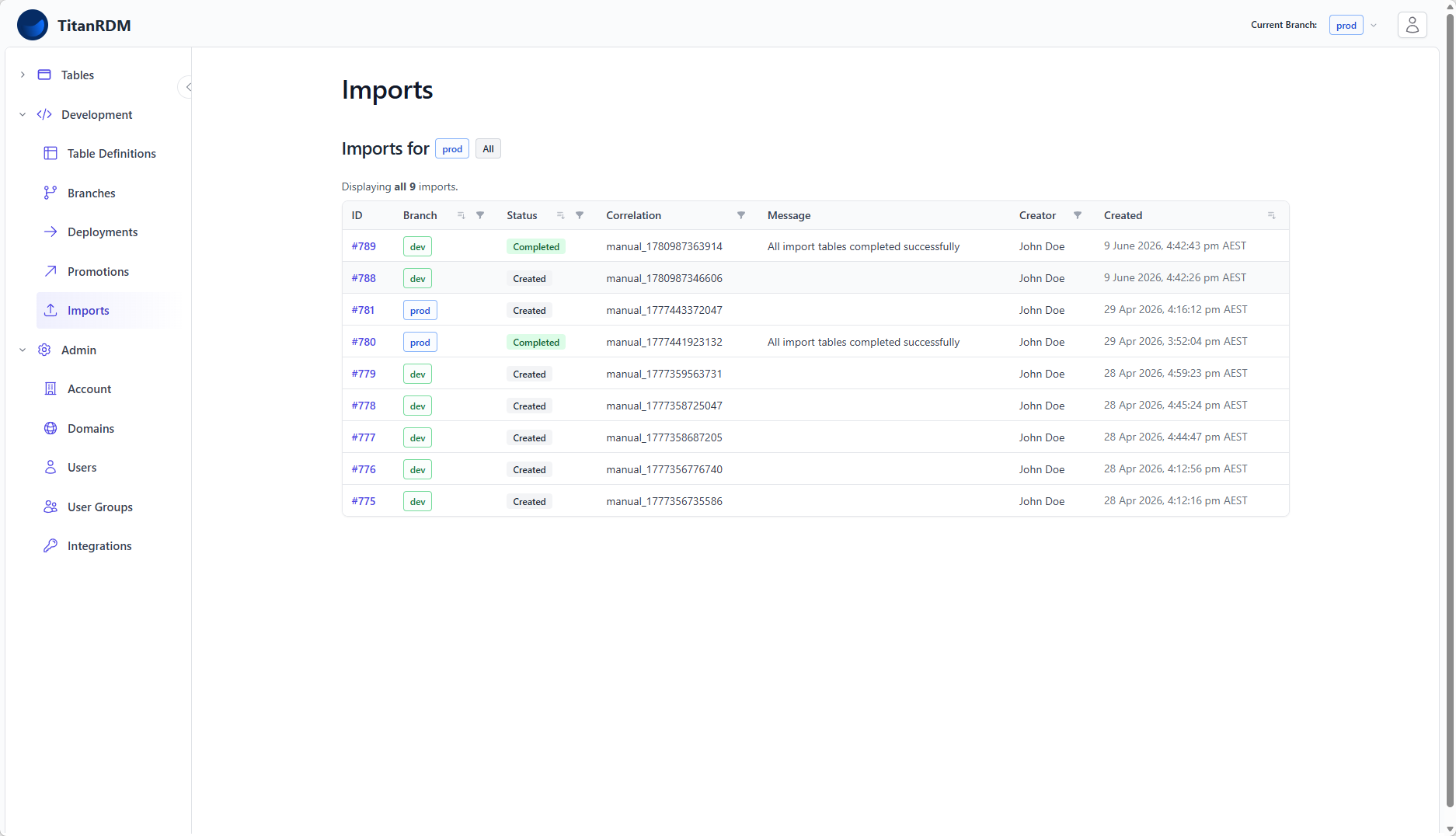
- Navigate to Development > Imports for a cross-table view
How Imports Work
When an import is processed, TitanRDM:
- Uploads the file to cloud storage (S3)
- Creates a staging table — a temporary table in the database with the file's columns
- Loads the file into the staging table
- Matches columns — maps file columns to table columns using the selected import mapping or auto-matching
- Merges data into the target table based on the table's load type
Merge Behaviour by Load Type
| Load Type | Insert | Update | Delete |
|---|---|---|---|
| Allow new rows to be added manually is enabled | New rows from the file are inserted. | Existing rows (matched by primary key) are updated. | No deletes — manually-added rows are preserved. |
| Allow new rows to be added manually is disabled | New rows from the file are inserted. | Existing rows (matched by primary key) are updated. | Rows in the table that are not in the file are soft-deleted (trdm_is_deleted = true). This is a full sync. |
Note: For Allow new rows to be added manually is disabled tables, a full import performs a full sync. Rows that exist in the table but not in the file are marked as deleted. This is by design — the file represents the complete, authoritative set of records from the source system.
History
An import never overwrites a row. When it changes a record it closes the version the record had and writes a new current version alongside it, so you can still see what the record looked like before the import ran. A delete works the same way: the record gets a new current version that is marked as deleted, rather than disappearing. Rows written by an import are attributed to the import rather than to a user, which is visible in the table's history view.
A record that is deleted and later turns up in a file again is treated as a new record, not as the old one coming back. The old record keeps its own history, ending in the delete. This is because the same key returning does not necessarily mean the same thing — a code retired in one part of the business may be reissued for something else entirely — and TitanRDM will not assume one way or the other.
Import Patterns
A file can be sent as a complete picture of the table or as a set of changes since last time. The pattern is chosen by the system uploading the file; imports run from the TitanRDM screens are always full.
| Pattern | What the file contains | Rows missing from the file |
|---|---|---|
| Full | Every record that should exist | Marked as deleted (unless the table also accepts rows added by hand) |
| Incremental (upsert only) | Only the records that changed | Left alone |
| Incremental (with deletes) | Only the records that changed, each carrying a transaction code | Left alone — deletes are stated in the file instead |
For Incremental (with deletes), the file needs an extra trdm_tran_code column holding one
letter per row:
| Code | Meaning |
|---|---|
i | Insert this record |
u | Update this record |
d | Delete this record |
Only d is acted on specially; i and u are both applied as "make the record look like this
row", so it does not matter if the sending system mislabels one as the other. A d for a record
that is not there is ignored. This is the same set of codes an incremental export produces, so
an export from one TitanRDM table can be fed straight into another.
Each key may appear only once in a file. If the same key appears twice the import stops and reports it, rather than picking one of the rows arbitrarily.
Column Matching
Columns are matched between the file and the table by name (case-insensitive). When auto-matching:
- File column
Currency_Codematches table columncurrency_code - File columns with no matching table column are ignored
- Table columns with no matching file column are left null (or retain their existing value on update)
Import mappings allow you to override this behaviour with explicit column-to-column mappings.
Importing Foreign Key/Lookup Columns
A foreign key column points at a row in another table, so your file needs to say which row. You can supply either form:
- The referenced table's key (usual) — include a column holding the referenced table's
primary key value, for example
iso_codecontainingAUS. TitanRDM looks the value up in the referenced table and stores the link for you. If the referenced table has a compound primary key, include one file column for each part. - The referenced record id — include a column named
_trdm_record_id
On the Column Mappings screen a foreign key column is listed once for each of these options — one row for the record id and one row per part of the referenced table's primary key — so you pick the file column against whichever form your file actually contains. Leave the rows you are not using unmapped. For a compound primary key you must map every key row — mapping only some of them cannot identify a single row, and the import will stop with an error saying which parts are missing.
Auto-match recognises both, including a file column named country_iso_code).
You never supply a version. TitanRDM records the version of the referenced row that is current at the moment the import runs, so the row keeps a reference to what the data looked like when it was loaded.
Note: If a value does not match any live row in the referenced table, the whole import fails and the message names the column and a few of the offending values. This is deliberate — it stops a typo becoming a silently broken link.
Import Statuses
Each import moves through several statuses:
| Status | Meaning |
|---|---|
| Created | The import record has been created and the file is being uploaded. |
| Processing | The file has been uploaded and the background job is running. |
| Completed | All data has been successfully merged into the target table. |
| Failed | An error occurred during processing. Check the import detail page for error messages. |
Import History
Table-Level Import History
From any table's data grid, click Import History in the breadcrumb to see all imports for that table. The list shows:
- Import ID
- Status (with colour-coded badge)
- Correlation code
- Created date
- Row counts (inserted, updated, deleted)
Account-Level Import History
Navigate to Development > Imports for a cross-table view of all imports. This page supports:
- Branch filter — defaults to your current branch
- Status filter — filter by import status
- Correlation filter — search by correlation code
- Creator filter — search by who initiated the import
- Sorting — by branch, status, created date, or approved date
Import Detail
Click an import to see its detail page, which shows:
- Import tables — each table included in this import, with its status and row count metrics (inserts, updates, deletes, file size, duration)
- Import actions — an audit trail of actions (created, started, completed, failed) with timestamps and users
Correlation Codes
Every import has a correlation code — a string that groups related import activity. For manual UI imports, this is auto-generated (e.g., manual_a1b2c3d4). For SDK/API imports, you supply your own correlation code, which lets you track imports across your data pipeline.
Troubleshooting Imports
| Problem | Likely Cause | Solution |
|---|---|---|
| Import completes but no rows appear | Column names in the file do not match table column names | Create an import mapping with explicit column-to-column mappings |
| Import fails with a data type error | File contains values incompatible with the column's data type (e.g., text in an integer column) | Clean the source data or adjust the column definition |
| Rows are unexpectedly deleted after import | Table load type is Source, which performs a full sync including deletes | If you want to preserve existing rows, change the table's load type to Manual |
| File upload fails | File exceeds 100 MB, or the format is not supported | Split large files or convert to a supported format |
SDK/API Imports
For programmatic imports, TitanRDM provides a SDK/API with a presigned URL workflow:
- Request a presigned upload URL via the SDK/API
- Upload the file directly to S3 using the presigned URL
- Trigger the import via the SDK/API, specifying the table, branch, and import mapping
- Poll for status until the import completes
This is covered in detail in SDK Imports and Exports.
Related Pages
- Viewing Data — see the results of your import in the data grid
- Editing Data — manually edit imported data
- Import Mappings — set up reusable column mappings
- Table Definitions — load types and how they affect import behaviour
- SDK Imports and Exports — programmatic import via the SDK/API