Editing Data
Available to: All users (with Data Manager permission on the domain) Minimum plan: Free
TitanRDM's data grid supports inline editing — click any cell to change its value, add new rows, or delete existing ones. Edits are collected a row at a time and saved when you finish with the row.
Prerequisites
To edit data in a table, you need:
- Data Manager permission on the table's domain (granted via the "Domain [Name] Data Manager" user group), or on the Table Definition itself, or Account Administrator access
- The table must be deployed on your current branch
Inline Cell Editing
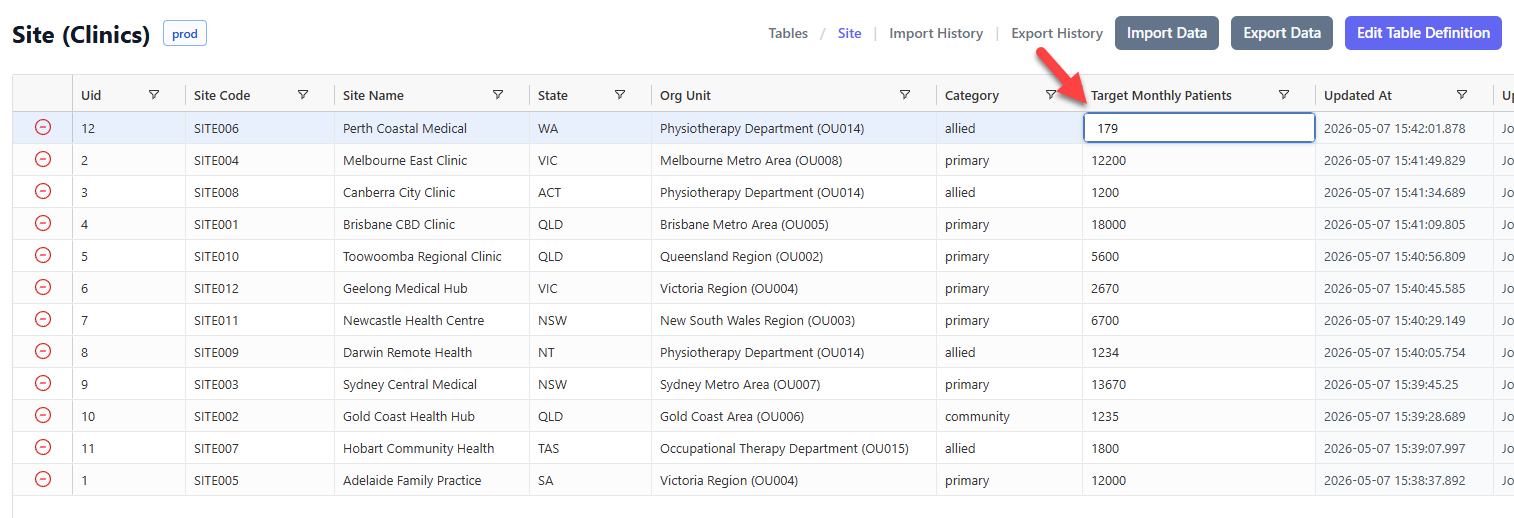
- Click any data cell in the grid
- The cell becomes editable — type a new value
- Press Enter or Tab to confirm the value and move to the next cell
- Press Escape to cancel the edit and revert to the original value
You can change as many cells in a row as you like before saving. While a row has unsaved changes, the tick button in its first column turns green.
The row is saved when you:
- click or tab onto a different row,
- click the green tick button, or
- click outside the grid.
All of the changes you made to that row are saved together as a single update, so correcting three cells records one change rather than three. If a validation error occurs (e.g., a required field is blank, or a value does not match the valid values list), an error message appears and your changes stay in the row so you can correct them and try again.
Note: If you try to leave the page while a row still has unsaved changes, your browser asks you to confirm before the changes are lost.
Editing Behaviour by Data Type
Different column data types present specialised editors:
| Data Type | Editor | Behaviour |
|---|---|---|
| varchar, character, text | Text input | Free-text entry. Length is enforced if defined on the column. |
| integer, smallint, bigint | Number input | Accepts whole numbers only. |
| decimal, real, double | Number input | Accepts decimal numbers. Scale is enforced if defined. |
| boolean | Checkbox | Click to toggle between true and false. |
| date | Date picker | Native browser date picker (YYYY-MM-DD). |
| time, timetz | Time picker | Native browser time picker (HH:mm or HH:mm:ss). |
| timestamp, timestamptz | DateTime picker | Native browser datetime-local picker (YYYY-MM-DDTHH:mm). |
Valid Values
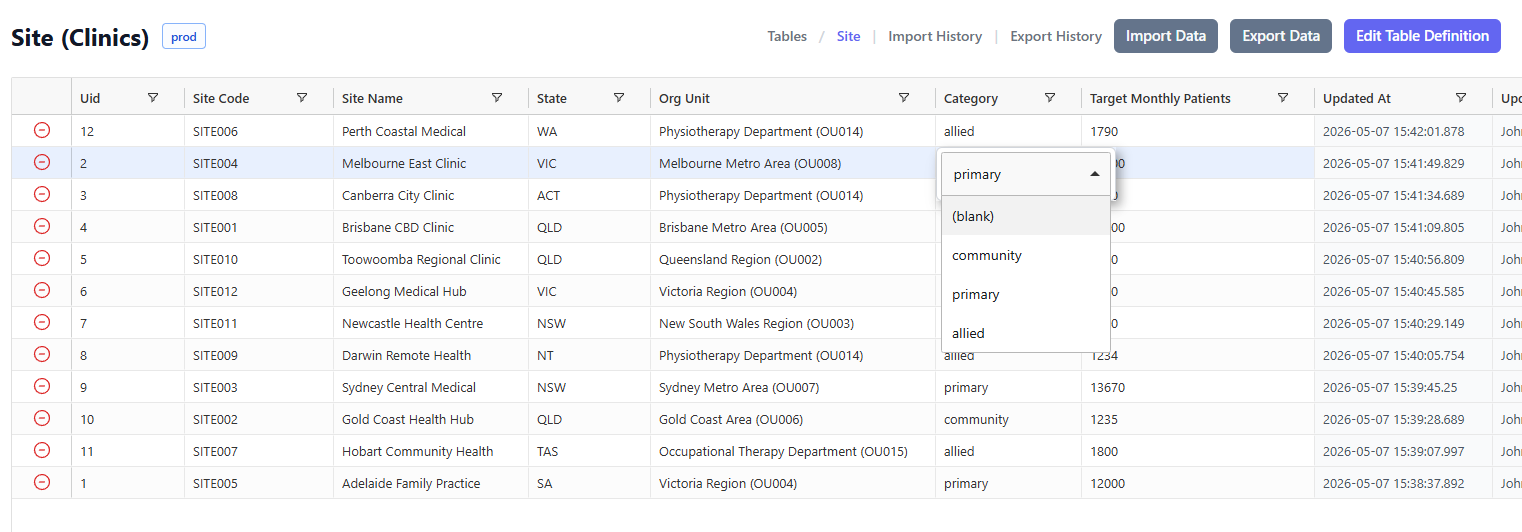
If a column has valid values defined (a comma-separated list set on the column definition), the cell editor displays a dropdown with only those values. You must select one of the allowed values — free-text entry is not permitted.
Foreign Key Lookups
If a column is defined as a foreign key, the cell editor displays a lookup dropdown showing values from the referenced table. The dropdown shows the referenced table's lookup display column value alongside the key value, making it easy to select the correct reference.
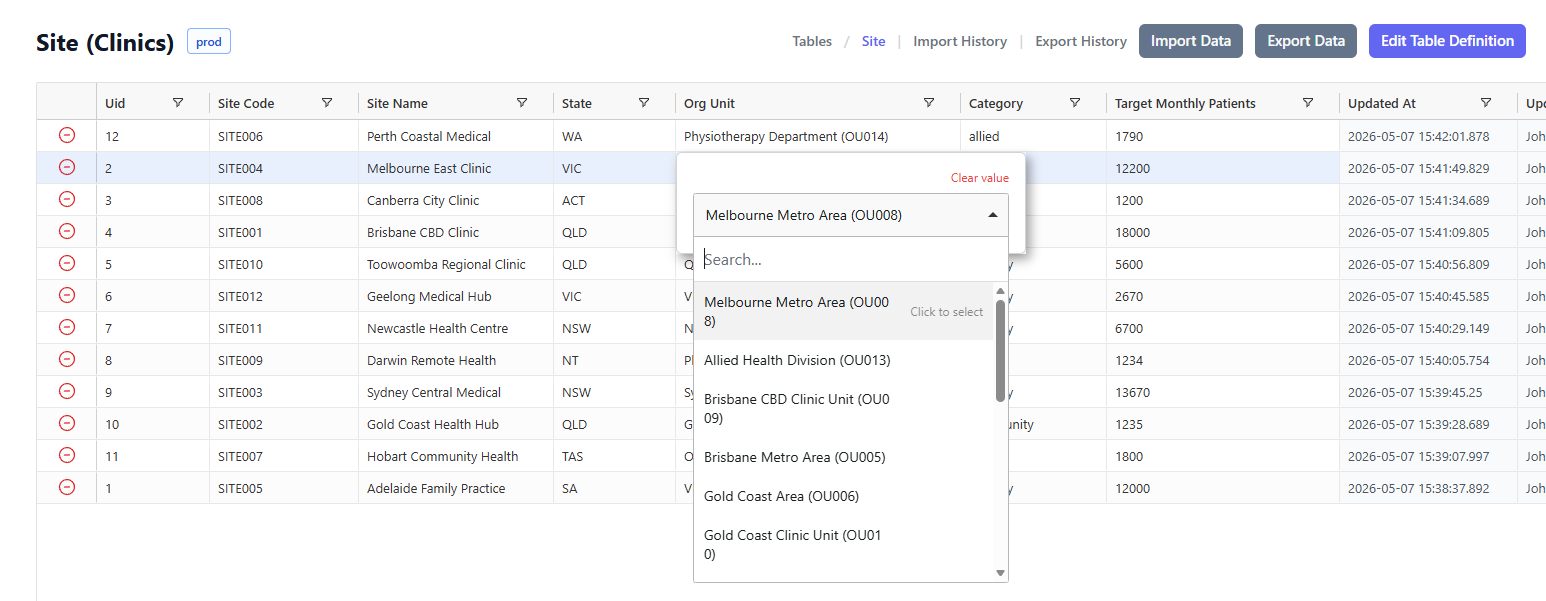
Tip: The lookup display column is configurable on the referenced table's definition. By default, it uses the first string column.
Adding Rows
New rows can be added in two ways, depending on the if the table allow new rows to be added manually is enabled:
Allow new rows to be added manually is enabled
- The top row of the grid is reserved for adding new rows
- Fill in the values for each column
- The row is added when you click the + button, or when you click onto a row in the grid below
The + button turns green once all required columns are filled in. A new row is only ever added when you ask for it — clicking away from the grid entirely, or leaving the page, never adds a half-finished row.
To abandon a new row you have started, click the ✕ button beside the +. This clears the row without adding anything.
You can add multiple rows in succession. New rows appear at the top of the grid under the default Uid sort.
Allow new rows to be added manually is disabled
If "Allow new rows to be added manually" is disabled, the reserved row for adding new rows is visible but cannot be used. New rows can only enter the table through file imports (manual upload or SDK/API). You can still edit existing rows — for example, to update mapping or categorisation columns.
Deleting Rows
To delete one or more rows:
- Click the - button in first column of the row(s) you want to delete
- A confirmation dialog asking of you want to delete the row(s) will appear
- Click Continue to confirm
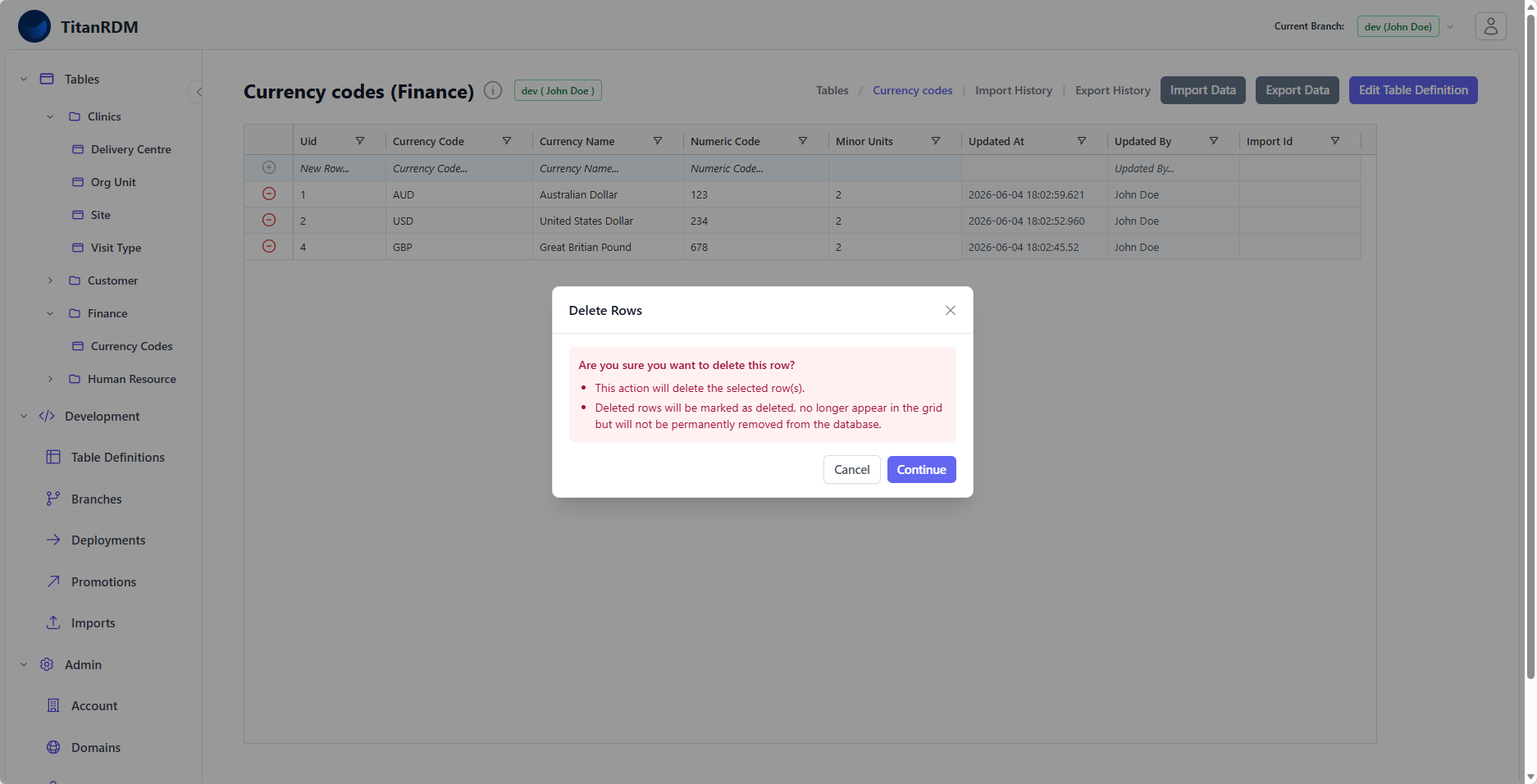
Note: Deleted rows are soft-deleted — they are marked as deleted and no longer appear in the grid, but are never permanently removed from the database. Tick Show History above the grid to see them again, along with their earlier versions.
System Columns
Every table has system-managed columns that you cannot edit directly:
| Grid column | Purpose |
|---|---|
| Uid | Identifies the record. A row keeps its Uid for its whole life, including when you edit it. |
| Version Id | Identifies this particular version of the record. Editing a row gives it a new Version Id. |
| Updated At | When the record was last updated. |
| Actor Type | Who made the change: User (U) or API (A). |
| Actor ID | Identifies the user or application that made the change. |
| State | Whether this is the current version of the record. |
| Effective From / Effective To | The period this version of the record was current for. |
These columns are managed automatically by TitanRDM and cannot be edited. They are included in the data export.
Note: Editing a row does not overwrite it — it writes a new version of the record and closes off the previous one. That is why the record's Uid stays the same while its Version Id changes, and why "Updated At" is the time this version was written.
Validation Rules
When editing a cell, TitanRDM enforces the following rules defined on the column:
| Rule | Behaviour |
|---|---|
| Required | The cell cannot be empty. Saving a blank value will show an error. |
| Data type | The value must be compatible with the column's data type (e.g., no text in an integer column). |
| Length | For varchar/character columns, the value cannot exceed the defined maximum length. |
| Valid values | If defined, the value must be one of the allowed values. |
| Foreign key | If defined, the value must reference an existing record in the referenced table. |
If a validation fails, the cell shows an error indicator and the change is not saved.
Concurrent Editing
Multiple users can edit the same table simultaneously. Each row is saved as a single atomic update. If someone else changes a row while you have unsaved edits to it, your save is rejected, the grid refreshes with the current data, and you are asked to review it before trying again — so one person's work is never silently overwritten by another's.
Undo
There is no built-in undo once a row has been saved. Before a row is saved you can press Escape to cancel an individual cell edit, and a new row can be abandoned entirely with the ✕ button. After a row is saved, click the cell again and correct the value.
For bulk mistakes (e.g., an import that overwrote data), contact your account administrator to discuss options such as restoring from a backup or re-importing the correct data.
Related Pages
- Viewing Data — navigating to tables, sorting, filtering
- Importing Data — bulk loading data from files
- Table Definitions — how columns, data types, and valid values are defined
- Domains — how domain permissions control data access