Exporting Data
Available to: All users (with permission on the domain) Minimum plan: Free
TitanRDM lets you export reference data from any deployed table to a CSV file. Exports can be triggered through the UI or programmatically via the API/SDK. Two export patterns are available: full (all records) and incremental (only records changed since a given timestamp). Either pattern can optionally include the version history of each record.
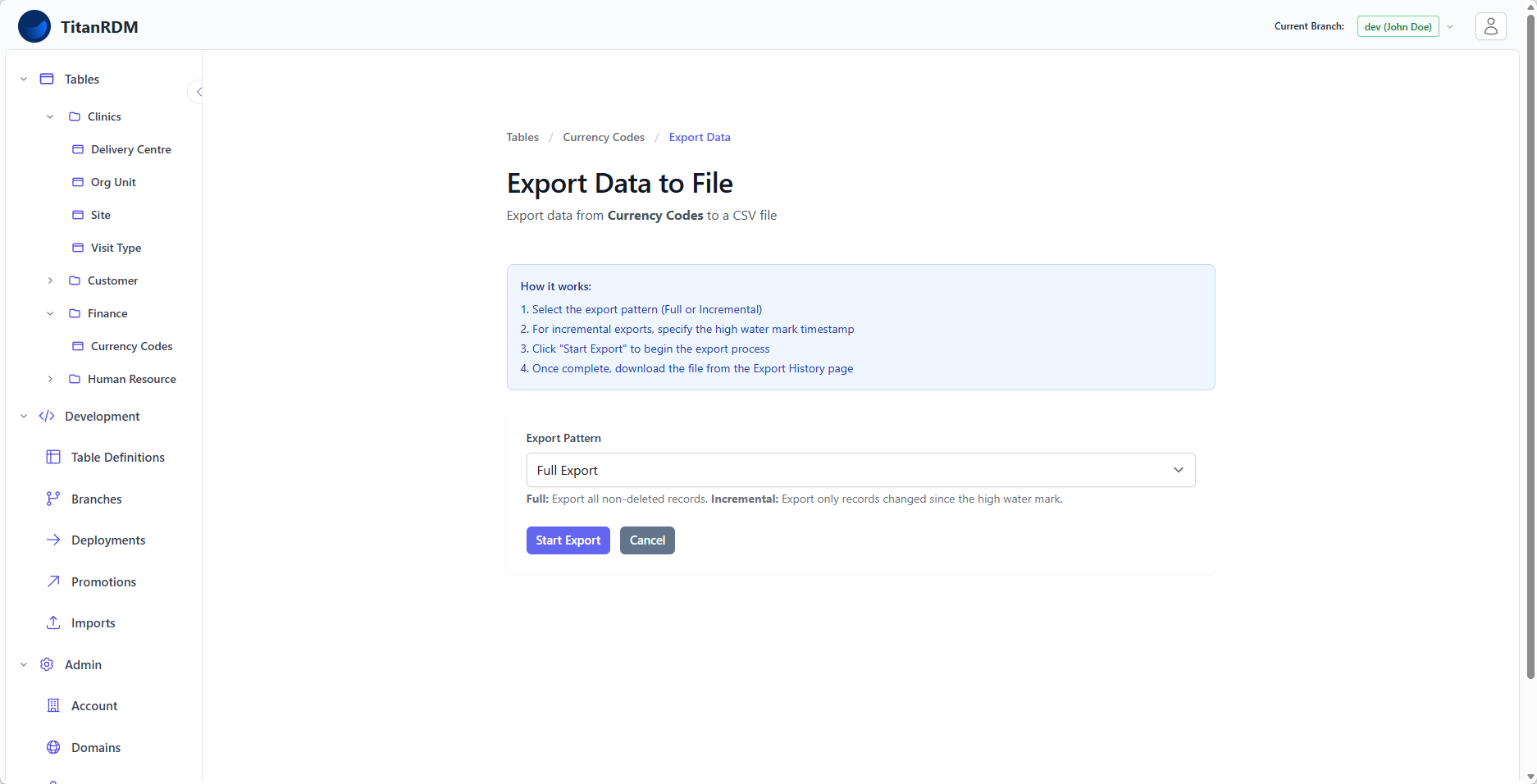
Export Patterns
| Pattern | What It Exports | Use Case |
|---|---|---|
| Full | The current version of every record in the table, excluding deleted records. | One-off downloads, initial loads for downstream systems, backups. |
| Incremental | Only records created, updated, or deleted since the high water mark timestamp. Includes a transaction code column (i = insert, u = update, d = delete). | Ongoing synchronisation with downstream systems, change data capture pipelines. |
Include History
Every change to a record creates a new version and keeps the old one, and deleting a record keeps it as a deleted version. By default an export contains only the current version of each record — the same rows you see in the data grid.
Turn on Include History and the export contains every version of every record instead, deleted records included — the same rows the grid's Show History toggle reveals. Each row carries a transaction code (i = insert, u = update, d = delete) and its version columns, so you can tell the versions apart and see when each one applied.
| Pattern | With Include History |
|---|---|
| Full | Every version of every record, from the first insert to the current version, including deleted records. |
| Incremental | Every version written since the high water mark. A record changed twice since then contributes two rows, so you get each step rather than only the end result. |
Tip: Use Include History when a downstream system needs the audit trail — who changed what and when — or when you need to reload a full change log rather than a snapshot.
Exporting via the UI
Step 1: Navigate to the Export Page
From the data grid for your table:
- Click the Export Data button in the header bar
Step 2: Select the Export Pattern
- Choose Full Export or Incremental Export from the dropdown
Step 3: Choose Whether to Include History
- Leave Include History off to export only the current version of each record
- Turn it on to export every version of every record, deleted records included
Step 4: Set the High Water Mark (Incremental Only)
If you selected Incremental Export:
- A date-time picker appears
- Enter the timestamp from which you want changes — only records changed after this timestamp will be included. The timestamp is read in your own time zone, and the export history page shows it back to you in that same zone
- Deleted records are included with a
dtransaction code, so downstream systems can apply the deletion
Tip: Use the completion timestamp of your last export as the high water mark to capture all changes since then.
Step 5: Start the Export
- Click Start Export
- The export job is queued and begins processing in the background
- A success message appears with a link to the Export History page

Step 6: Download the File
- Navigate to the Export History page (from the success message link, or via the table header breadcrumb)
- Wait for the export status to change to Ready
- Click the Download link to save the CSV file
Export History
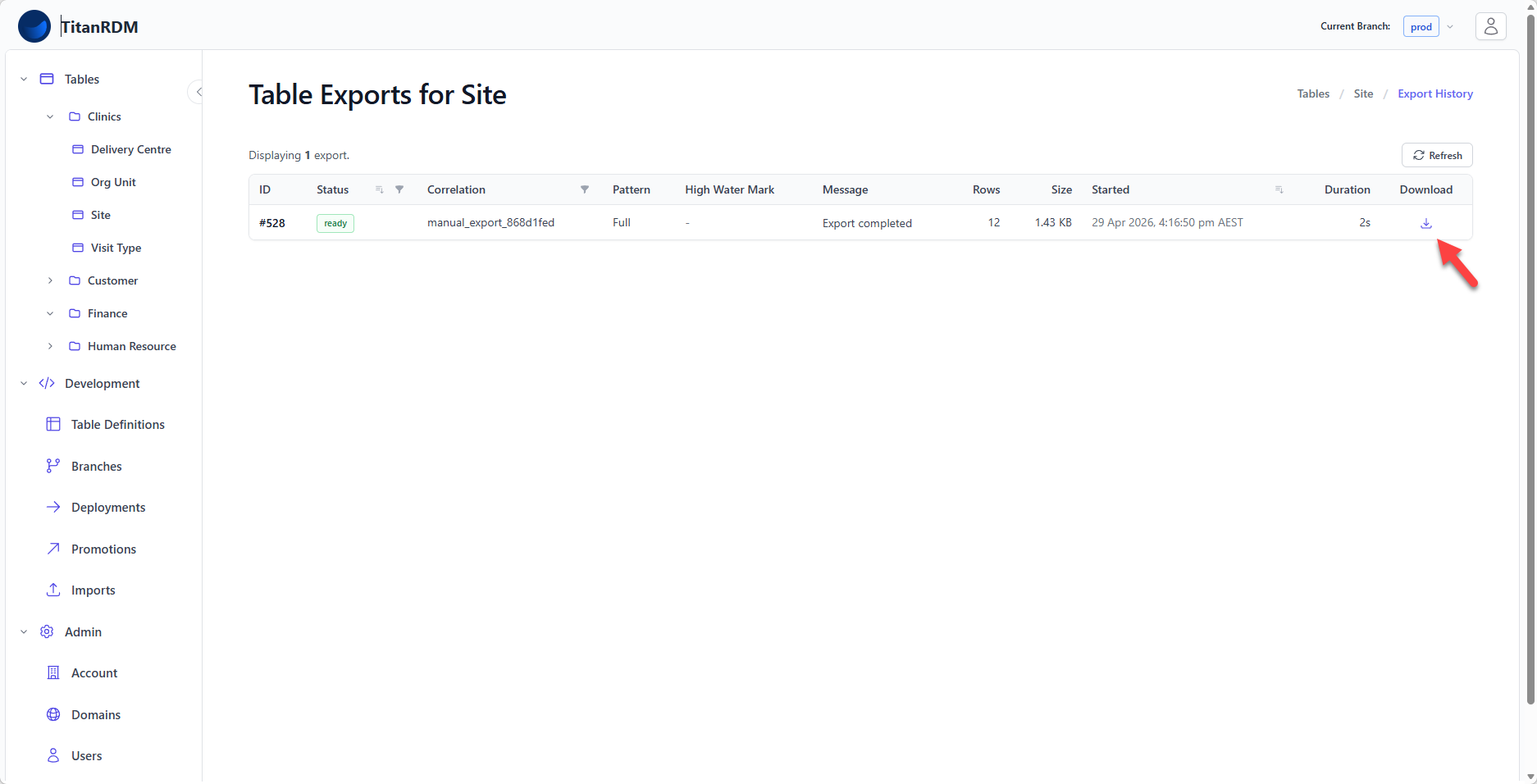
From any table's data grid, click Export History in the breadcrumb to see all exports for that table.
The export history list shows:
| Column | Description |
|---|---|
| Status | Current status with a colour-coded badge |
| Pattern | Full or Incremental, with a + history badge when the export includes version history |
| Correlation Code | Identifier linking related exports (auto-generated for UI exports, custom for API exports) |
| Started | When the export job began |
| Ready | When the export generation finished |
| Download | Link to download the CSV file (appears when ready) |
The list supports filtering by status and correlation code, and sorting by status, created date, started date, or completed date.
Export Statuses
| Status | Meaning |
|---|---|
| Started | The export job has been queued and is running. |
| Ready | The CSV file has been generated and is ready for download. |
| Failed | An error occurred during export generation. |
Exported File Format
Exports produce a CSV file with:
- A header row containing column names
- One row per record, or one row per version when history is included
- All user-defined columns from the table definition
- System columns:
trdm_sk(version identifier),trdm_record_id(record identifier, stable across versions),trdm_state,trdm_created_at,trdm_effective_from,trdm_effective_to,trdm_is_deleted,trdm_actor_type,trdm_actor_id - A
trdm_tran_codecolumn, holdingi,uordfor incremental exports and for any export that includes history, and left empty for a plain full export
Boolean columns — your own and trdm_is_deleted — are written as true or false.
Rows are ordered by record, and within a record from the oldest version to the current one.
Foreign Key/Lookup Columns
A foreign key column is exported as two columns rather than one:
| Column | Meaning |
|---|---|
| The referenced record, stable across all its versions |
| The exact version of the referenced record in effect when this row was written |
Export the referenced table as well and join on whichever column suits you:
- Join
_trdm_record_id trdm_record_idto see the current values of the referenced record. - Join
_trdm_sk trdm_skto see the referenced record as it was when this row was recorded. This needs an export of the referenced table that includes history.
The referenced table's own key and description are not repeated in this file — take them from the referenced table's export, so there is only ever one copy of them.
Correlation Codes
Every export has a correlation code — a unique identifier for tracking. For UI-initiated exports, this is auto-generated (e.g., manual_export_a1b2c3d4). For SDK/API-initiated exports, you supply your own code, which is useful for tracing exports through your data pipeline.
Usage and Limits
Exports initiated via the SDK/API and UI count towards your plan's SDK Import/Export runs allowance. Export files are only temporary and don't consume storage.
| Plan | SDK Import/Export Runs |
|---|---|
| Free | 100/month |
| Plus | 3,000/month |
| Business | 9,000/month |
| Enterprise | Custom |
See Plans and Tiers for details on limits and overage billing.
SDK/API Exports
For programmatic exports, TitanRDM provides REST API endpoints to:
- Trigger an export — specify the table, branch, pattern, whether to include history, and (for incremental) the high water mark
- Poll for status — check when the export has completed
- Download the file — retrieve the generated CSV via a presigned URL
This is covered in detail in SDK Imports and Exports.
Related Pages
- Viewing Data — browse data before exporting
- Importing Data — the reverse operation — loading data into tables
- Plans and Tiers — export usage limits by plan
- SDK Imports and Exports — programmatic export via the API